
Visually Combine & Reorder PDFs
Combine pages from several PDFs visually. Load several PDFs, see all pages together and drag them into the order you want before combining them into a single document.
- 100% private
- No upload
- Free, no sign-up
- Fast
How to combine and reorder PDF pages
3 simple steps. No software to install.
-
1
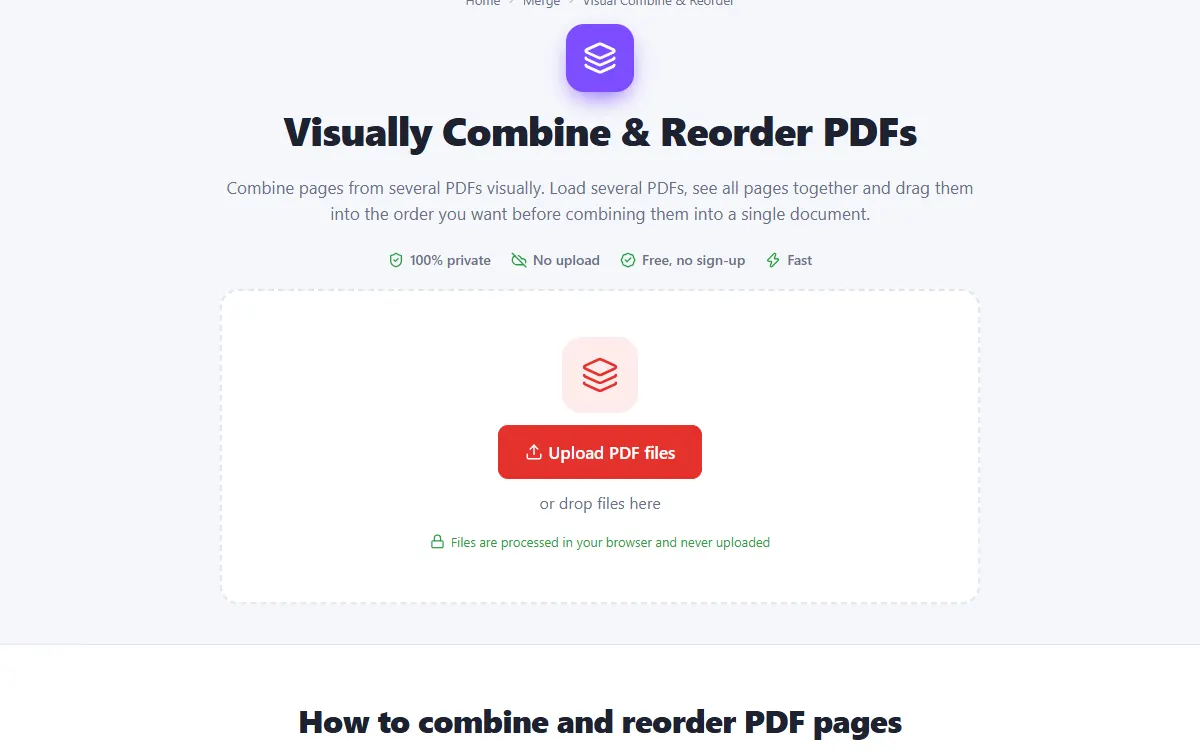
Upload your PDF files
Click the upload button or drag and drop your PDF files onto the page. Nothing is sent to a server: the file opens right in your browser.
-
2
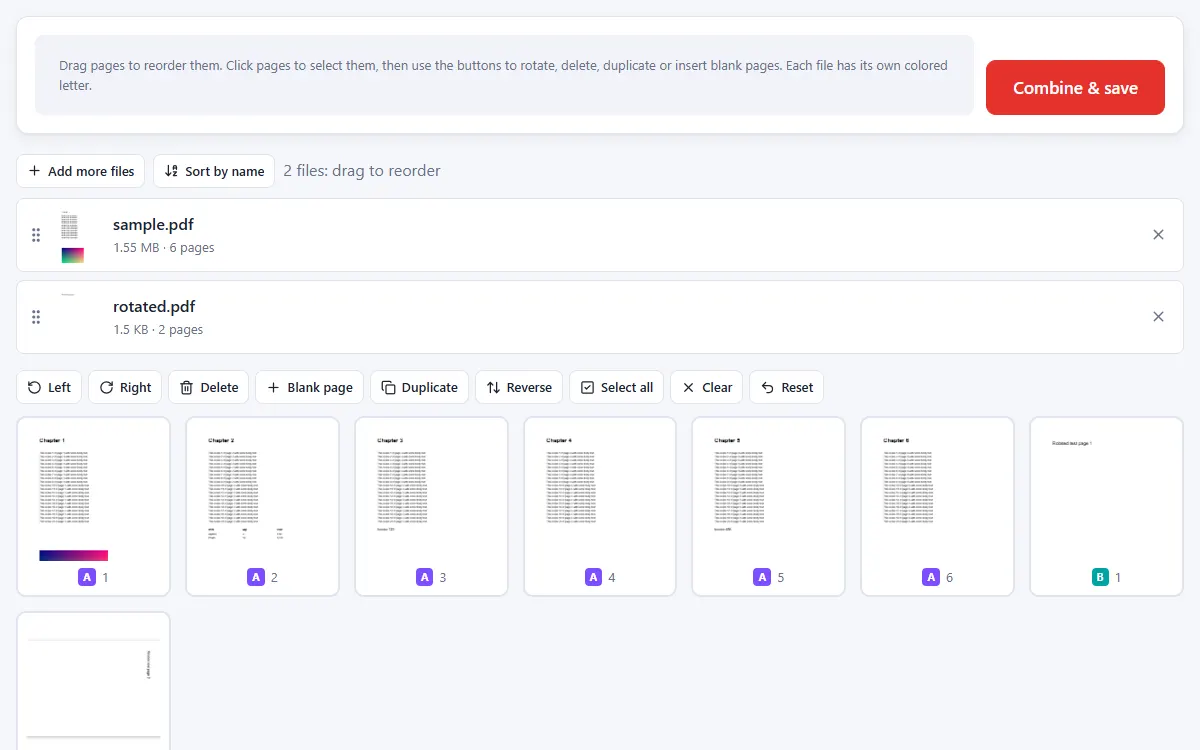
Drag pages into order
All pages from all files appear as thumbnails, each file with its own colored letter. Drag, rotate or remove pages until everything is in place.
-
3
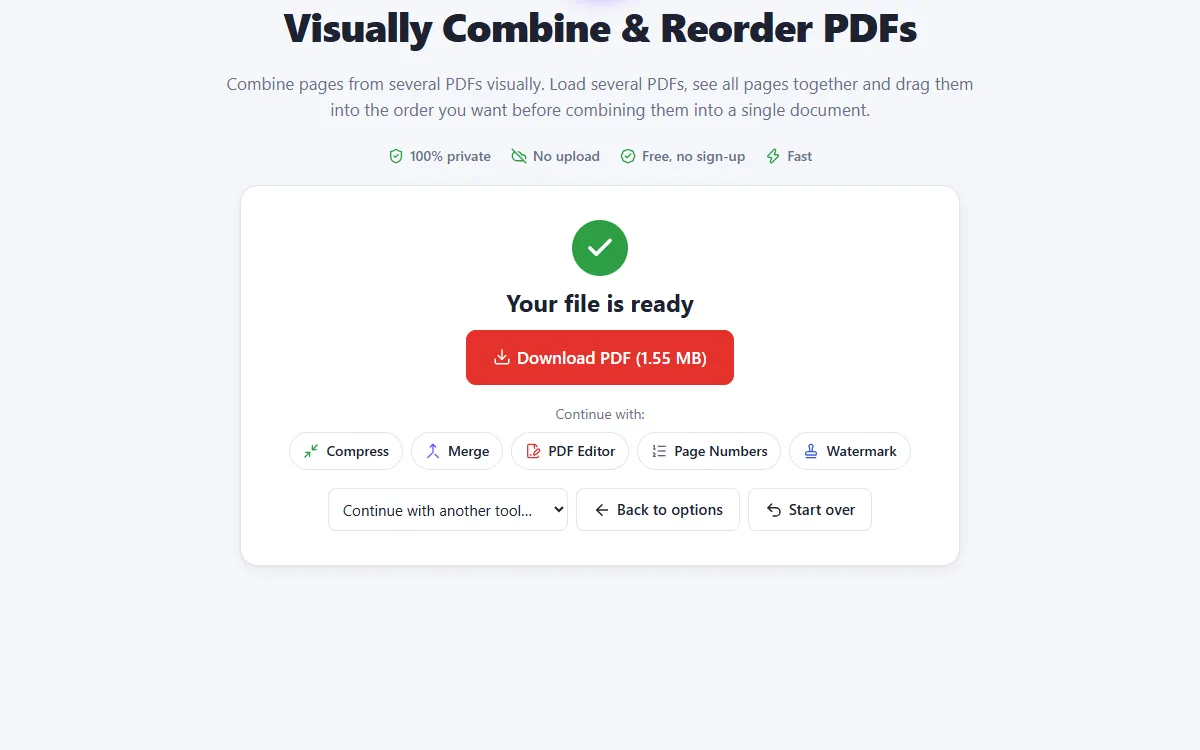
Combine and download
Click "Combine & save" to get one PDF with exactly the pages you arranged.
Why use our Visual Combine & Reorder tool
Mix pages across files
Put page 3 of one file between pages 1 and 2 of another. Every page moves freely.
Fix orientation
Rotate sideways scans while you combine.
Private and secure
Files are processed on your own device. They are never uploaded, stored or seen by anyone.
Free, no sign-up
No account, no email and no watermark on your documents.
Fast
No waiting for uploads and downloads: results are ready in seconds.
Works everywhere
Windows, Mac, Linux, Android and iPhone, in any modern browser.
Visual Combine & Reorder: frequently asked questions
What is the difference with Merge?
Merge joins whole files. Visual Combine shows every single page so you can interleave pages from different files.
Can I remove pages while combining?
Yes. Hover a page and click the delete button, or select several pages and delete them at once.
Is Visual Combine & Reorder free to use?
Yes. PDFNest is free, needs no account and never adds a watermark.
Are my files safe?
Yes. Your files are processed inside your browser and are never uploaded to a server, so nobody else can access them.
Does it work on my phone?
Yes. It works in any modern browser on Android and iPhone as well as on computers. Large files are faster on a computer.