
Add Page Numbers to PDF
Add page numbers to a PDF. Number pages with your choice of position, format, start number, font size and pages.
- 100% private
- No upload
- Free, no sign-up
- Fast
How to Add Page Numbers to PDF online
3 simple steps. No software to install.
-
1
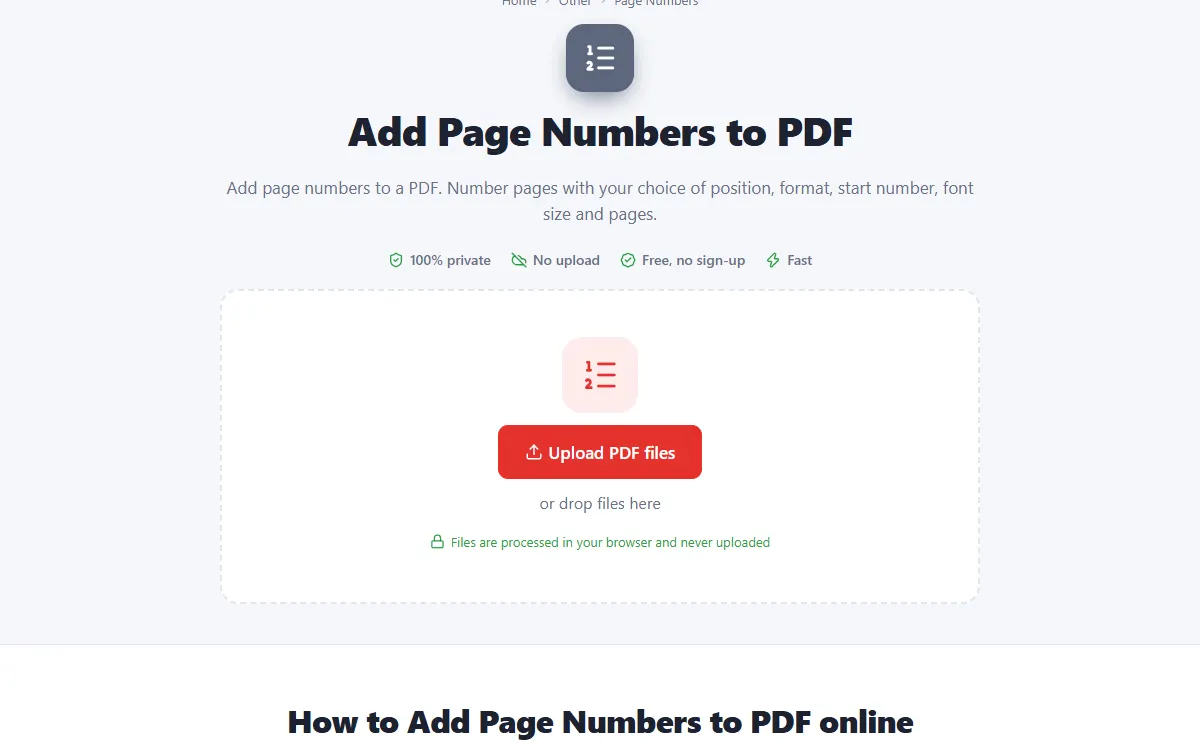
Upload your PDF files
Click the upload button or drag and drop your PDF files onto the page. Nothing is sent to a server: the file opens right in your browser.
-
2
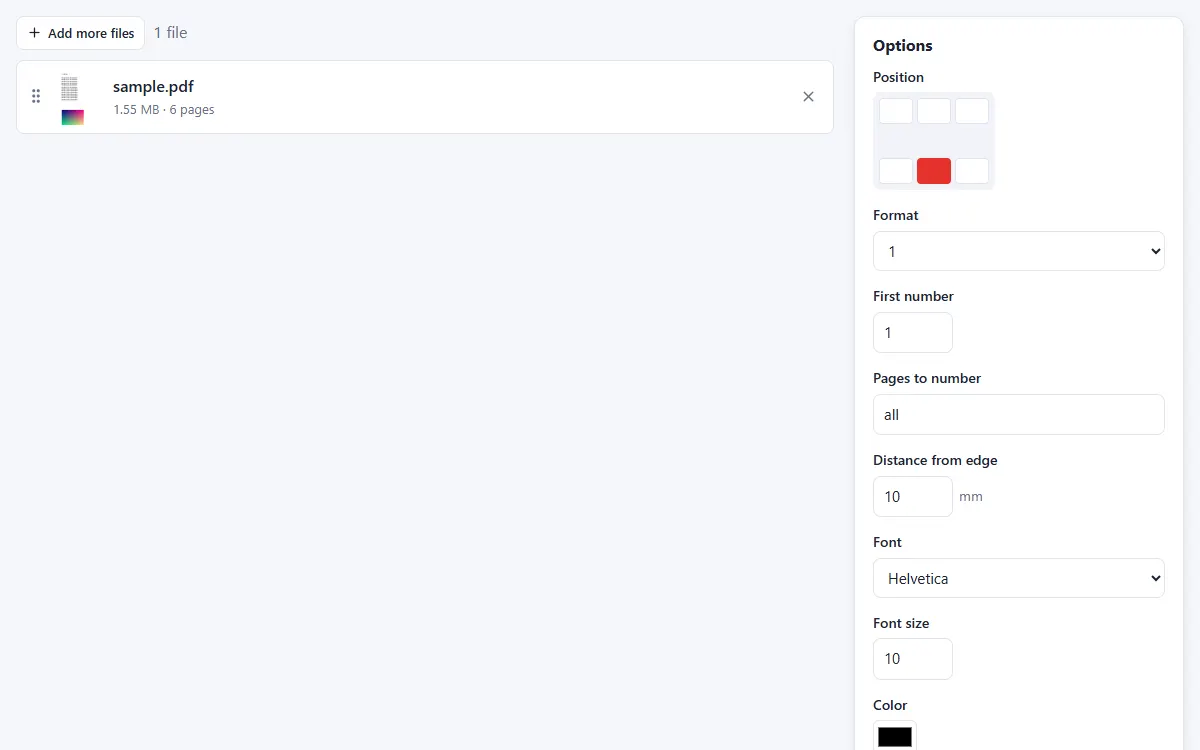
Choose the style
Pick the position, format (such as "Page 1 of 10"), first number, pages to number, font and size.
-
3
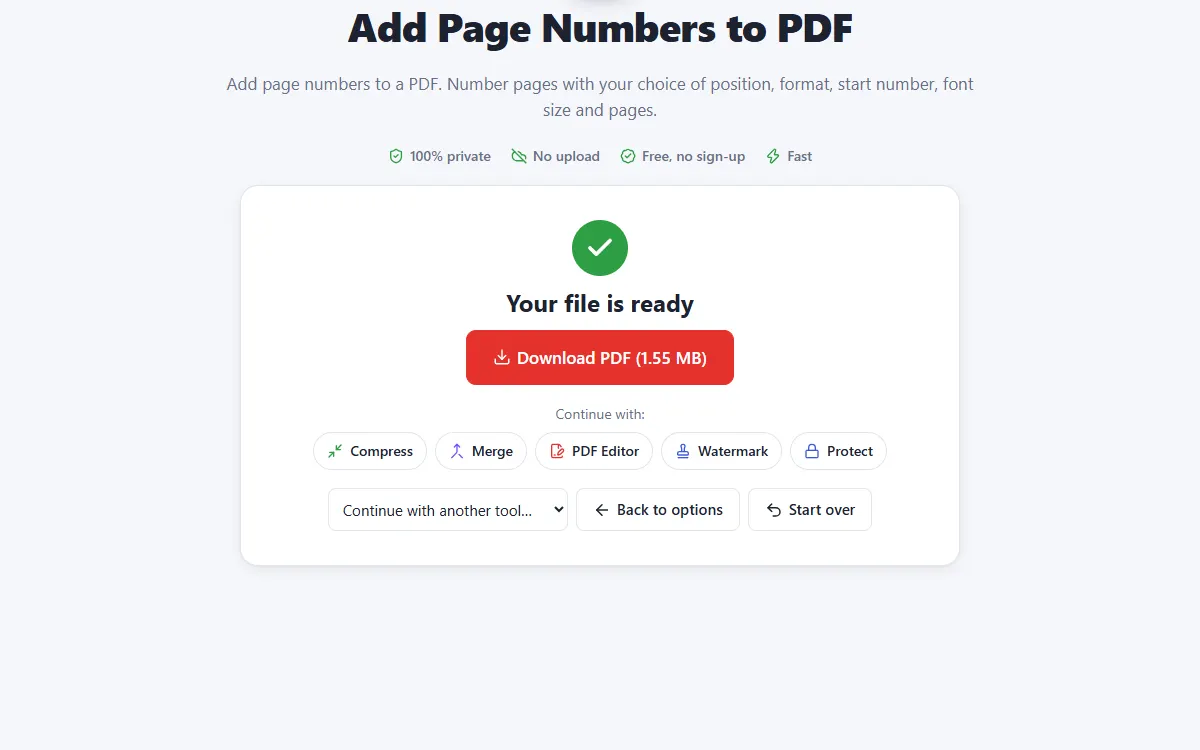
Download the numbered PDF
Page numbers are added in seconds.
Why use our Page Numbers tool
Any format
1, Page 1, Page 1 of 10, 1/10 or your own text.
Start anywhere
Skip the cover page and start from any number.
Private and secure
Files are processed on your own device. They are never uploaded, stored or seen by anyone.
Free, no sign-up
No account, no email and no watermark on your documents.
Fast
No waiting for uploads and downloads: results are ready in seconds.
Works everywhere
Windows, Mac, Linux, Android and iPhone, in any modern browser.
Page Numbers: frequently asked questions
How do I skip the first page?
Type 2- in "Pages to number" and set the first number to 1.
Do page numbers work on rotated pages?
Yes. Numbers are placed as you see the page.
Is Page Numbers free to use?
Yes. PDFNest is free, needs no account and never adds a watermark.
Are my files safe?
Yes. Your files are processed inside your browser and are never uploaded to a server, so nobody else can access them.
Does it work on my phone?
Yes. It works in any modern browser on Android and iPhone as well as on computers. Large files are faster on a computer.